When a system has more than one design area, define each remote area in AutoCAD before you export. HASS Cloud turns each one into its own remote area in the calculation file, and shares the piping that the remote areas have in common.
Before you start, complete the 2D Export tool up to the Review and export step. See Using HASSCAD in AutoCAD.
Add remote areas in AutoCAD
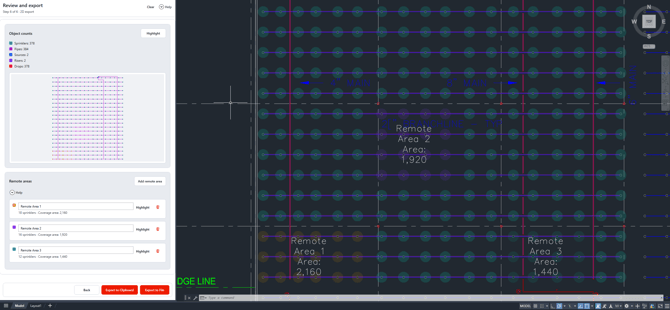
A remote area is a group of sprinklers for HASS Cloud to treat as a remote design area. On the Review and export step of the 2D Export tool:
- Select Add remote area.
- Window-select the sprinklers in the remote area. To remove sprinklers, hold Shift while you finish the window.
- Press Enter, or select Finish.
- Repeat for each remote area.
Keep these in mind:
- Which sprinklers: Only objects included in your model selection and have been assigns as sprinkler components can go in a remote area.
- Overlap: A sprinkler can be in more than one remote area.
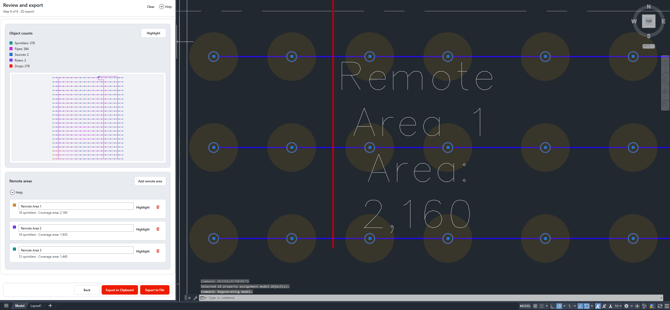
- Names: New remote areas are named Remote Area 1, Remote Area 2, and so on. To rename a remote area, select the name in the list and type a new name. The names carry into HASS Cloud.
- Row details: Each row shows the number of sprinklers and the Coverage area, which is the total of the sprinklers' Area values.
- Deleting: To delete a remote area, select the Delete button on that row.
Navigate remote areas in AutoCAD
Each remote area has its own color in the drawing, with a label that shows the remote area name and area.
To find a remote area, select Highlight on that row. AutoCAD selects the remote area's sprinklers and zooms to them.
When the remote areas look right, select Export to File or Export to Clipboard.
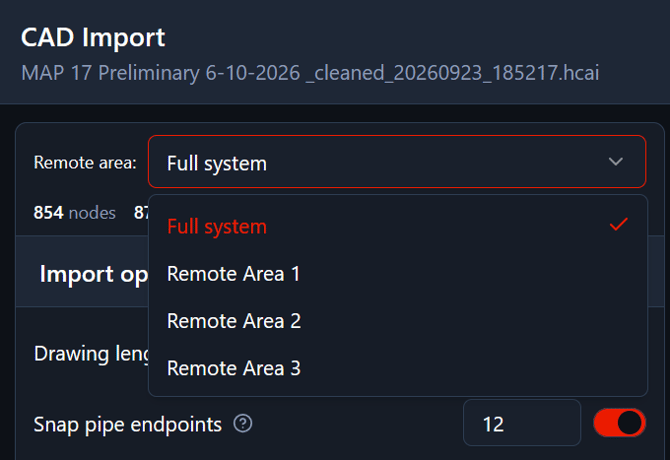
Review remote areas on the CAD Import screenWhen the export includes remote areas, the CAD Import screen shows a Remote area dropdown in the sidebar. The dropdown lists Full system and each remote area by the name you gave it in AutoCAD.
- Full system: Shows the whole system from the export. The Full system view is for reference and for fixing errors.
- A remote area: Shows only that remote area's system. That includes the remote area's sprinklers, the piping that feeds them from the source, and the shared elements. Branches that only serve other remote areas don't appear.
- Counts: The node, pipe, and source counts update for the selected view.
- Warnings: The Warnings list covers the whole import. When you select a warning outside the current remote area, the preview switches to Full system.
- Fixes: Fixes you make with the Inspector, New Node, New Pipe, or Delete apply to the whole import. HASS Cloud rebuilds every remote area from the corrected system.
HASS Cloud imports the remote areas, not the Full system view.
How HASS Cloud builds each remote area
- Contents: Each remote area includes its own sprinklers and the piping that feeds them from the source, including loops and grids.
- Other sprinklers: Sprinklers on that piping that aren't in the remote area are included without a K-factor, so they don't flow. Sprinklers that aren't in any remote area don't flow in any remote area.
- Shared elements: These are the nodes, pipes, and sources that every remote area has in common. A sprinkler that flows in a remote area is never shared, and neither is a pipe connected to that sprinkler. If the remote areas are on completely separate systems, nothing is shared.
After the import, the calculation file has one remote area for each remote area in the export, with the same names. If two remote areas have the same name, HASS Cloud adds a number to one of them, for example Remote Area 1 (2). The file opens on the first remote area.
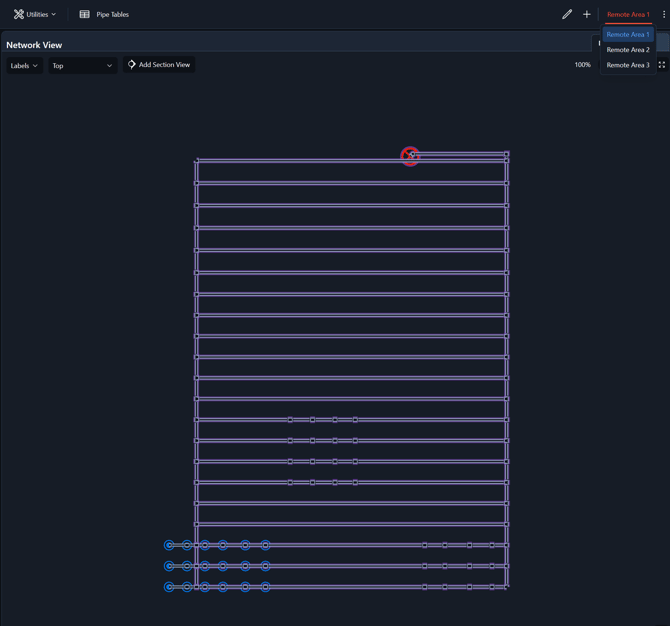
The toolbar shows the name of the current remote area. To switch remote areas, point to the name, then select a remote area from the list. The remote area actions menu has Rename, Duplicate, and Delete.
Shared elements in the calculation file
- In the tables: In the Node, Pipe, and Source tables, shared elements have a light purple background.
- In the network view: Shared elements turn purple when you select them.
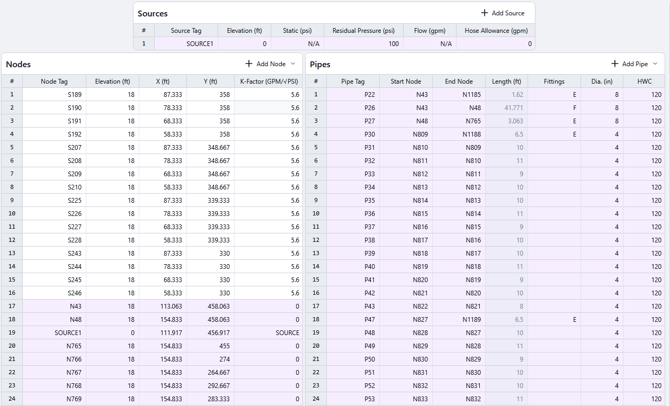
- Editing: A shared element is the same in every remote area, so editing it changes every remote area. HASS Cloud shows the Editing a shared element warning before the change. Calculations in the other remote areas become stale and need to be recalculated.
- Changing the shared set: To change which elements are shared, select Edit shared elements in the toolbar, select rows in the Node table, and then select Save Changes. The Confirm shared set changes dialog lists what changes in every remote area. An element you remove from the shared set is copied into each remote area as a local element.
Related articles: Importing an AutoCAD System into HASS Cloud · Installing HASSCAD for AutoCad · Using HASSCAD in AutoCAD · Multiple Remote Areas