
Use this article to help install HASSCAD
Before you start, you need a Windows computer with AutoCAD 2018–2027 and administrator rights on that computer.
1. On the HASS Cloud home page, select the hamburger menu.
2. Select Download HASSCAD.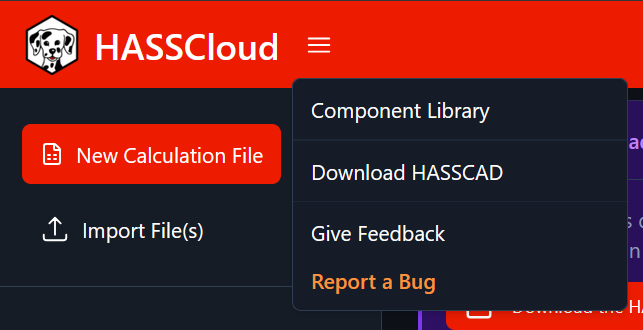
3. If the browser asks where to save the file, save the installer to your computer.
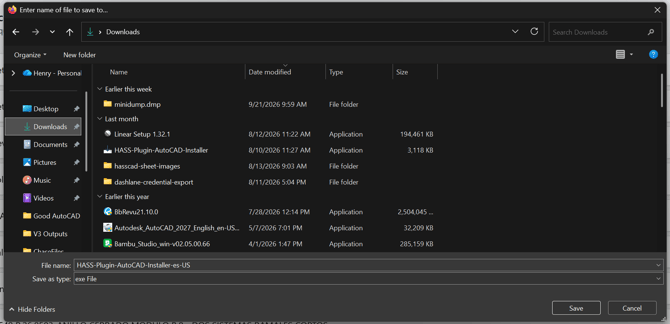
4. Open the installer.
4a. If a Windows protected your PC message appears, select More info.
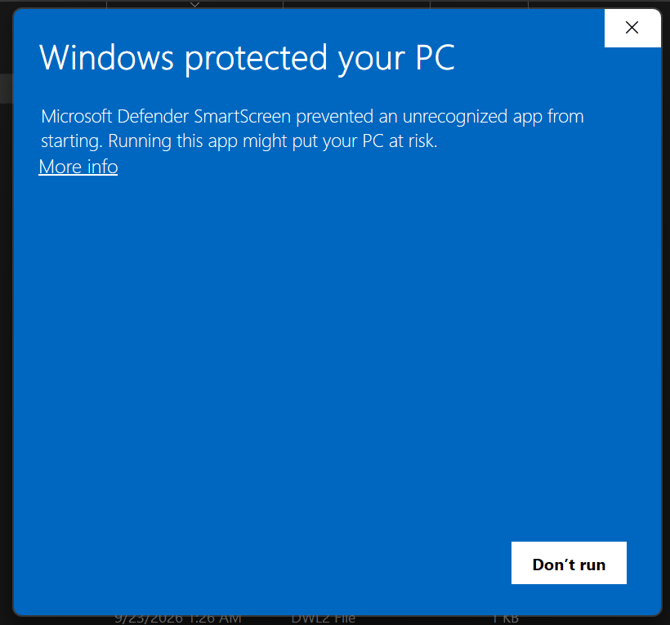
4b. Select Run anyway.
5. When Windows asks, "Do you want to allow this app to make changes to your device?", select Yes.
6. Read the License Agreement.
7. Select I accept the agreement.
8. Select Next.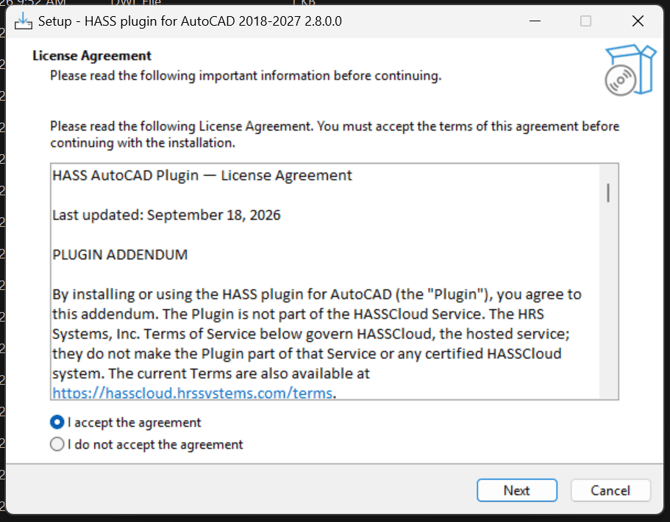
9. On the Plugin options page, change the Plugin language, Add HASS ribbon, or Include HASS desktop ribbon tab settings if you don't want the defaults.
10. Select Next.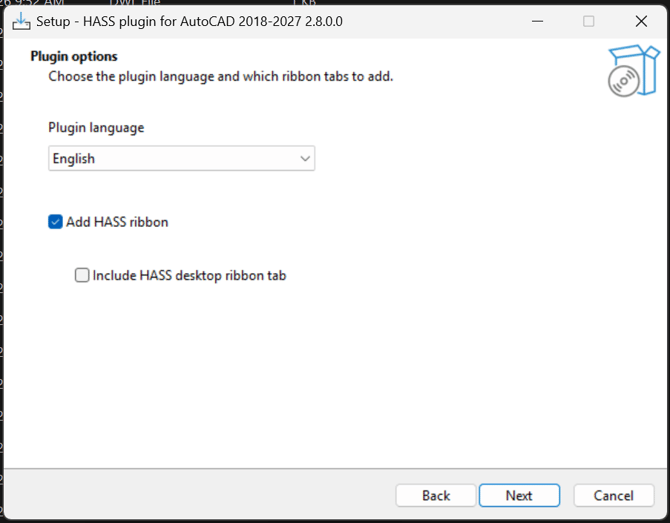
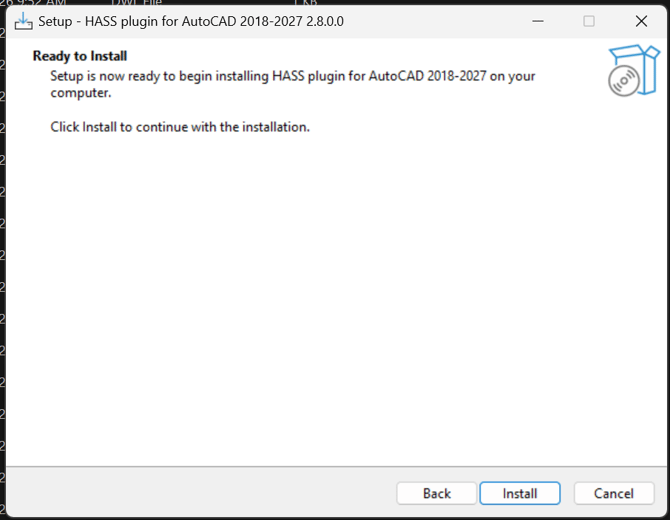
11. On the Ready to Install page, select Install.
12. Select Finish. 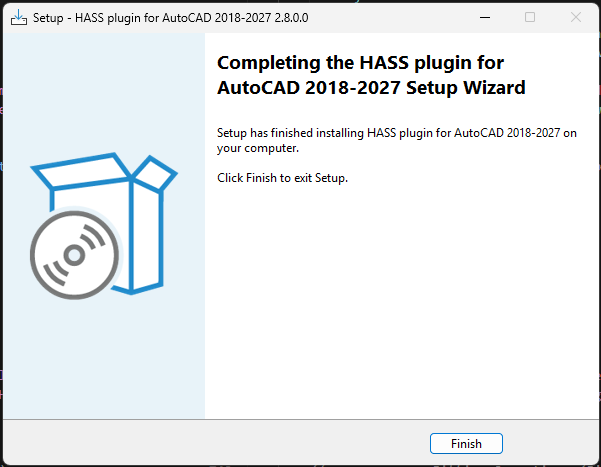
If AutoCAD is open when you select Install, close AutoCAD and select Retry. 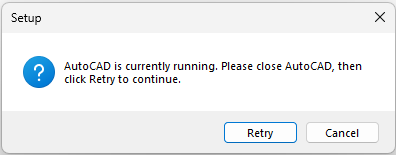
The next time you open AutoCAD, the HASSCAD plugin loads automatically.
Related articles: Importing an AutoCAD System into HASS Cloud · Exporting and Importing Multiple Remote Areas from AutoCAD· Using HASSCAD in AutoCAD